Copy the agent distribution
file
C:\Users\victorb\Downloads\dynaTrace\dynatrace-agent-5.5.0.5226.msi
from apm.mapstrat.com to the Barrie machine.
Install the agent: custom
installation -> disable all technology support except
.NET: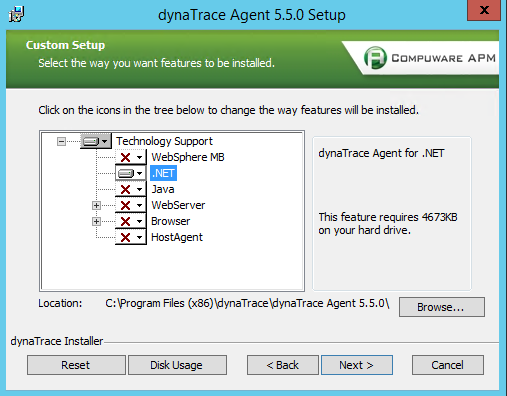
Choose to activate the agent at
the end of the installation: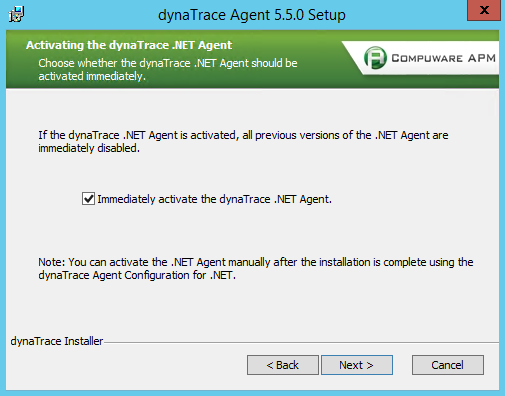
Launch dynaTrace .NET Agent
Configuration utility: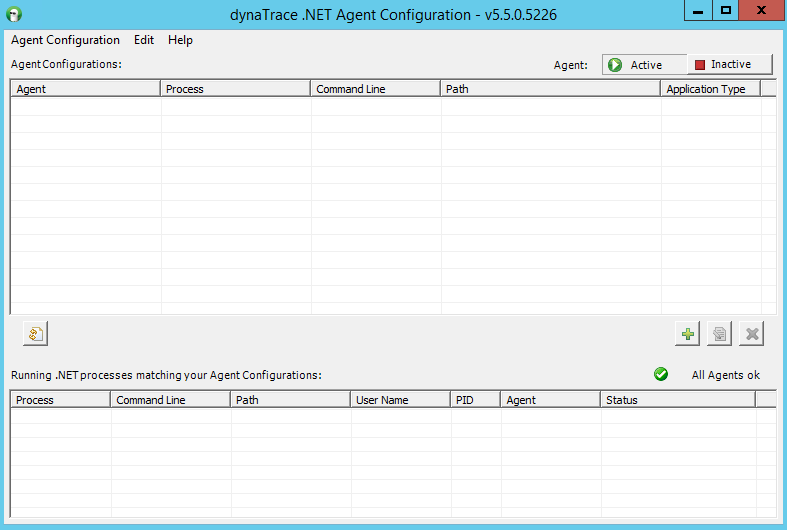
For each of the Barrie web
sites and Windows services create a new agent configuration: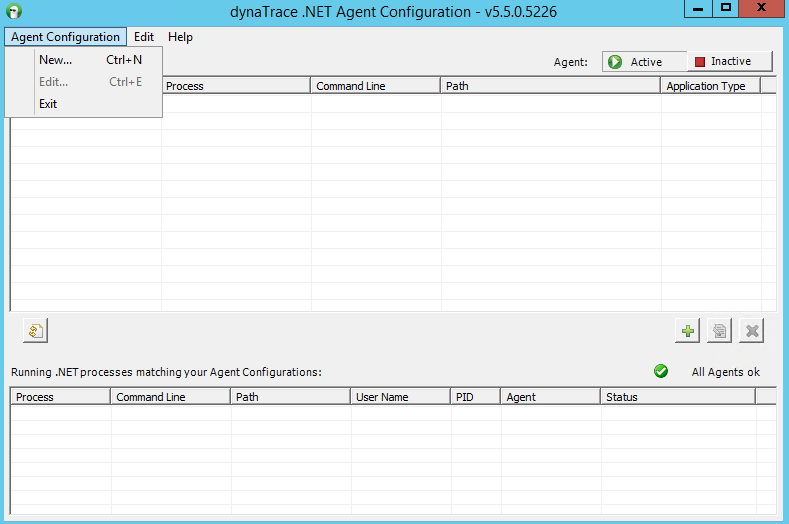
To do that, pick the
corresponding .NET process (a matching w3wp.exe for web
sites):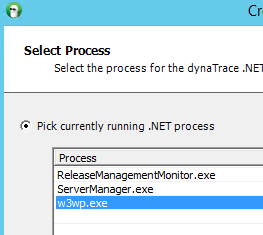
Click
Next.
Fill-in the Agent Name field,
leaving the default suggested name, but prefixing it with IIS_Prod-
for the web sites, and with .NET_Prod-
for all the various services. The prefixes have to be typed
literally (mind the dot, the dashes and underscores), otherwise the
agent won’t be properly mapped by the dynaTrace server to an
agent group, and will be unusable.
Leave the rest of the fields at
their default values, except the Address field, which has to
be apm.mapstrat.com (or APM machine’s IP address, if
fixed).
The screen would look like
so: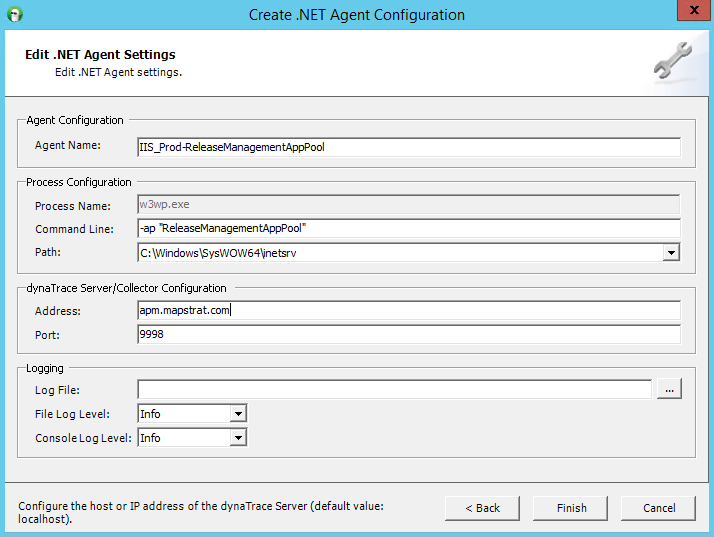
Restart IIS and all the
configured Windows services – this will activate dynamic
on-the-fly instrumentation of the executables.
At this point the agent screen
should look like so: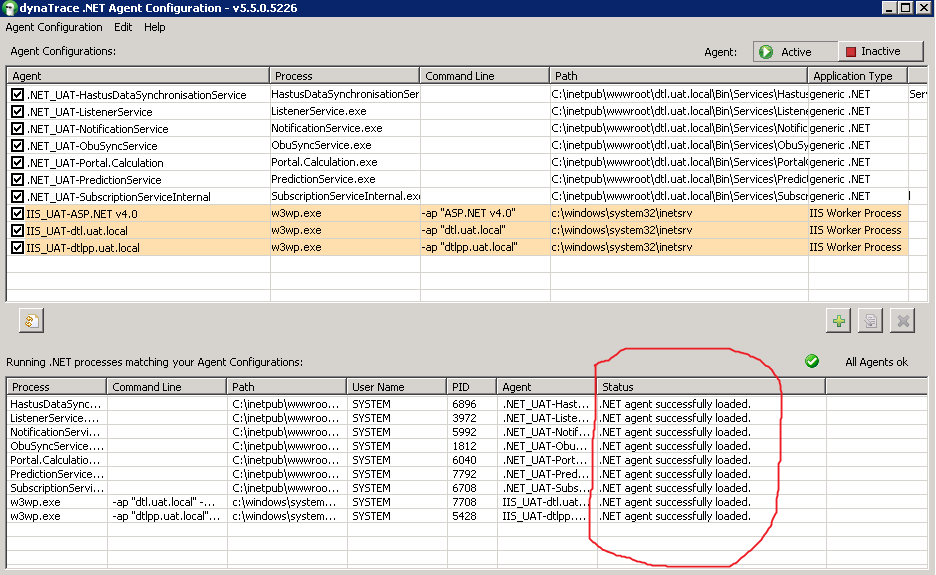
This completes the installation
and configuration. To make sure, open up the dynaTrace Client on the
APM machine, open up, Prod -> Infrastructure -> Agent
Connection Status screen, it should list all the instrumented
processes as agents, in green color, like so: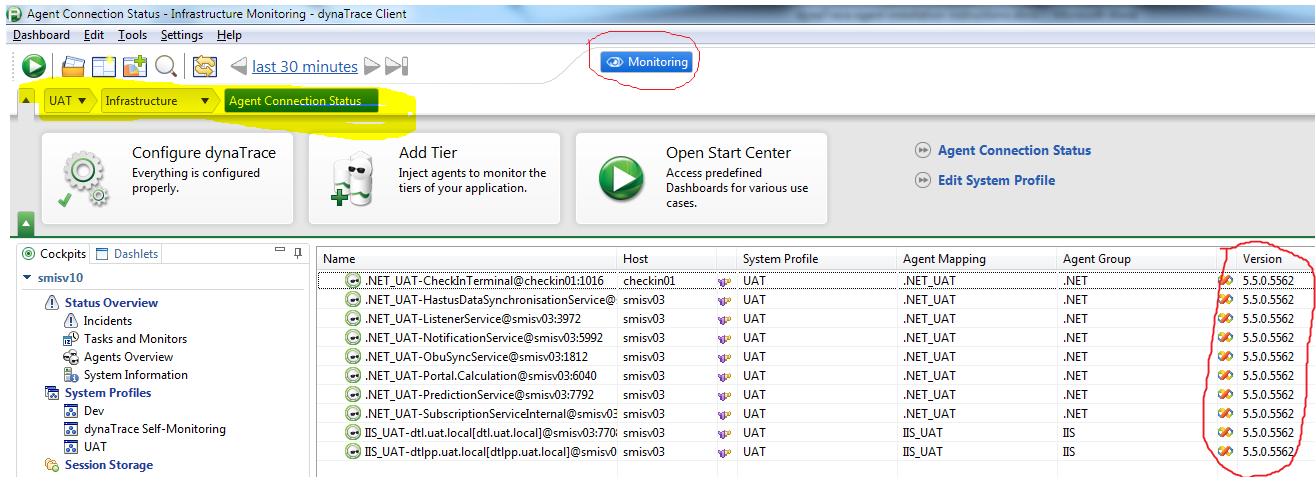
Check the versions – they
should be 5.5.0.5562 – if they show a smaller last group of
digits, it means that the dynaTrace Collector has not yet
upgraded the agents to the most recent version – to make sure
it did you would need to restart all the agents again – either
restart the machine or stop all instrumented services,
deactivate the agent, activate it again, and start the IIS and
services.
If some
of the agents cannot start (not shown in the Client, shown as red,
show some error in the agent configuration utility, etc.), it could
mean instrumentation error. To make sure that there is no
interference with the production services in such a case, please
un-instrument the services in the agent configuration utility, so
that they would start and run without dynaTrace instrumentation.